One day saml2aws login just stopped working. More precisely, it stopped working the day I moved a Passkey over to my company IdP account so that I could use it from my password manager.
When I re-ran it with --verbose, the log showed an “HTML parse failure” message. Out of curiosity I opened up saml2aws’s source code, and sure enough every per-IdP provider was built the same way: fetch the IdP login page as HTML and scrape the form fields out of it. The code assumes a normal password/OTP page, so the moment a Passkey prompt shows up instead, the selectors no longer match anything and the whole flow collapses. This was less “the tool broke” and more a signal that authentication models are moving in a direction where headless automation no longer works.
Two questions followed me out of that experience. How does the AWS CLI actually fetch credentials, and where does it put them? And if I have to replace saml2aws, what is the structurally correct answer? This post is a record of chasing those two questions. We’ll start by dissecting the ~/.aws/ directory, then compare the five paths for obtaining temporary credentials, and finally land on why IAM Identity Center is the answer.
1. AWS Credentials — Where Do They Actually Come From?
Whenever the AWS CLI (and every AWS SDK) needs credentials, it walks a fixed order called the credential resolution chain. First it checks environment variables, then profile configuration, then EC2 instance metadata or container roles. The priority is almost identical across SDKs.
What this post focuses on is the profile-based path — authentication through the ~/.aws/ directory. It’s the route most familiar to developers using the CLI locally.
Credentials come in two broad categories:
- Long-term credentials — IAM User access keys. They start with
AKIAand are valid indefinitely. Without manual rotation, they stay alive forever. - Short-term credentials — temporary keys issued by STS. They start with
ASIAand come paired with asession token. They’re typically valid for between one and twelve hours.
The structure of ~/.aws/ is, in the end, an answer to one question: “How do we obtain, store, and refresh these two kinds of credentials?” Once you understand what each file is for, it becomes obvious where to look when something goes wrong.
2. Dissecting the ~/.aws/ Directory
2.1 ~/.aws/config — The Skeleton of Profiles
The most fundamental config file. It’s created by aws configure, aws configure sso, or by editing it directly. Per profile, it defines region, output format, and the method for obtaining credentials.
[default]
region = ap-northeast-2
output = json

[profile prod]
region = ap-northeast-2
role_arn = arn:aws:iam::123456789012:role/AdminRole
source_profile = default
mfa_serial = arn:aws:iam::111111111111:mfa/hj.kang

[profile prod-sso]
sso_session = teamsparta
sso_account_id = 123456789012
sso_role_name = AdministratorAccess
region = ap-northeast-2

[sso-session teamsparta]
sso_start_url = https://teamsparta.awsapps.com/start
sso_region = ap-northeast-2
sso_registration_scopes = sso:account:access
Two details trip people up here.
First, only the default profile uses [default]. Everything else has to be written as [profile <name>] — the profile prefix is mandatory. This is genuinely confusing because the rule is different from what we’ll see in the credentials file in a moment.
Second, the [sso-session] section is a relatively new concept introduced with AWS CLI v2’s IAM Identity Center integration. It lets multiple profiles share a single SSO access token. This is why a user with access to 50 accounts only needs to SSO-login once.
2.2 ~/.aws/credentials — Plaintext Keys on Disk
The file that stores IAM User access keys in plaintext. It’s created when you run aws configure and enter your keys.
[default]
aws_access_key_id = AKIA...
aws_secret_access_key = ...

[some-temp-profile]
aws_access_key_id = ASIA...
aws_secret_access_key = ...
aws_session_token = ...
Three things worth remembering:
- Keys that begin with
AKIAare an IAM User’s permanent access key. - Keys that begin with
ASIAare temporary credentials issued by STS. In this case, anaws_session_tokenaccompanies them. - The section name is
[profile-name]— unlike theconfigfile, there is noprofileprefix.
This file is the riskiest one from the perspective of compliance frameworks like ISMS-P. Long-term keys sit on disk in plaintext. If a laptop is lost or a backup leaks, they’re exposed. As we’ll see later, the operational pattern of “keeping long-term keys in credentials” is steadily fading out.
2.3 ~/.aws/sso/cache/ — Home of the SSO Token
This directory is created the moment you sign in with aws sso login or aws configure sso. It contains two kinds of JSON files.
File 1: {sha1-of-start-url-or-session-name}.json — the actual SSO access token.
{
  "startUrl": "https://teamsparta.awsapps.com/start",
  "region": "ap-northeast-2",
  "accessToken": "eyJlbmMi...",
  "expiresAt": "2026-05-16T20:00:00Z",
  "refreshToken": "...",
  "clientId": "...",
  "clientSecret": "...",
  "registrationExpiresAt": "2026-08-14T..."
}
- The access token is typically valid for about 8 hours.
- If a refresh token is present, the token is renewed in the background.
- With this single token, you can obtain temporary credentials for every account and role reachable by the SSO session. That makes it, in practice, even more sensitive than the
credentialsfile.
File 2: botocore-client-id-{region}.json — the result of OIDC Dynamic Client Registration.
{
  "clientId": "...",
  "clientSecret": "...",
  "registrationExpiresAt": "2026-08-14T..."
}
This is the record of the CLI being registered with AWS SSO OIDC as a “client”. It’s valid for roughly three months and is not recreated on every login. The significance of this surfaces again in section 4 when we walk through the IAM Identity Center flow.
2.4 ~/.aws/cli/cache/ — The AssumeRole Result Cache
The directory that caches the results of AssumeRole-style STS calls. It’s created when you use a profile with role_arn + source_profile.
{
  "Credentials": {
    "AccessKeyId": "ASIA...",
    "SecretAccessKey": "...",
    "SessionToken": "...",
    "Expiration": "2026-05-16T20:00:00Z"
  },
  "AssumedRoleUser": {
    "AssumedRoleId": "AROA...:session",
    "Arn": "arn:aws:sts::123456789012:assumed-role/..."
  }
}
Filenames are a hash of the profile configuration (role_arn, role_session_name, mfa_serial, etc.). The reason the CLI doesn’t re-prompt you for an MFA token on every command is precisely this cache. Until expiry, the same temporary credentials get reused.
2.5 The Rest — Side Files Worth Knowing About
~/.aws/cli/alias— CLI alias definitions.~/.aws/models/— custom service models.*.lock— concurrency lock files. They appear and disappear in an instant.
That’s enough of a big picture on the directory structure. Now let’s compare the five paths that actually populate these files with credentials.
3. Five Ways to Obtain Temporary Credentials
Every temporary credential is ultimately issued through the STS API or one of its variants. The essence of each path is: which API gets called with what inputs, where the result is stored, and how it’s refreshed.
3.1 Comparison Table at a Glance
| Path | API | Input | Where Results Land | Refresh Method |
|---|---|---|---|---|
| AssumeRole | sts:AssumeRole | Keys from source_profile (+ MFA) | ~/.aws/cli/cache/ | Re-called on expiry |
| AssumeRoleWithSAML | sts:AssumeRoleWithSAML | SAML assertion | ~/.aws/credentials (written directly by saml2aws) | None — full re-auth required |
| AssumeRoleWithWebIdentity | sts:AssumeRoleWithWebIdentity | OIDC JWT | Memory, or the token file path | Automatic when the token file is refreshed |
| SSO | OIDC Device Auth + sso:GetRoleCredentials | SSO access token | Credentials in memory or a short-lived cache; access token in ~/.aws/sso/cache/ | Automatic via refresh token |
| credential_process | Parsed stdout from an external process | Arbitrary (tool-specific) | Tool-specific (e.g. aws-vault uses the OS keychain) | Handled by the tool itself |
3.2 The Essence of Each Path
(1) AssumeRole chain — the most traditional approach. Put your IAM User keys under [default], then in [profile prod] use role_arn + source_profile = default to switch into the role. If the policy requires MFA, add mfa_serial. The result is cached in cli/cache/ and reused until expiry. The catch: it only works as long as long-term keys live on disk.
(2) AssumeRoleWithSAML — the STS-only endpoint used in SAML-based SSO environments. This is the very API saml2aws was calling under the hood. You take a SAML assertion to STS, get back temporary credentials, and write them into ~/.aws/credentials. There’s no refresh token, so once they expire you have to re-authenticate from scratch — and as we saw in the intro, the moment the IdP login page switches to something non-HTML like a Passkey prompt, the automation tool stops dead in its tracks.
(3) AssumeRoleWithWebIdentity — you take an OIDC JWT to STS and get back credentials. EKS’s IRSA (IAM Roles for Service Accounts), GitHub Actions OIDC, and cross-cloud auth from GCP/Azure workloads all flow through this path. You set web_identity_token_file and role_arn in ~/.aws/config, and the SDK reads the token file and submits it to STS. This is the authentication style workloads carry around, not humans.
(4) SSO (IAM Identity Center) — a two-step flow. First, the user authenticates in a browser via OIDC Device Authorization Grant and receives an access token (which gets stored in ~/.aws/sso/cache/). Second, that access token is used to call sso:GetRoleCredentials and obtain temporary credentials for a specific account/role. An interesting wrinkle: the temporary credentials themselves are often not separately cached on disk — only the access token is cached.
(5) credential_process — if you write credential_process = /path/to/tool ... in ~/.aws/config, the SDK runs that process whenever it needs credentials and parses JSON from stdout. This is the official hook through which tools like aws-vault or the 1Password CLI plug into the SDK standard.
3.3 One Flow as a Picture
Tables only get you so far. Here’s the most slippery flow, AssumeRoleWithSAML, laid out visually.
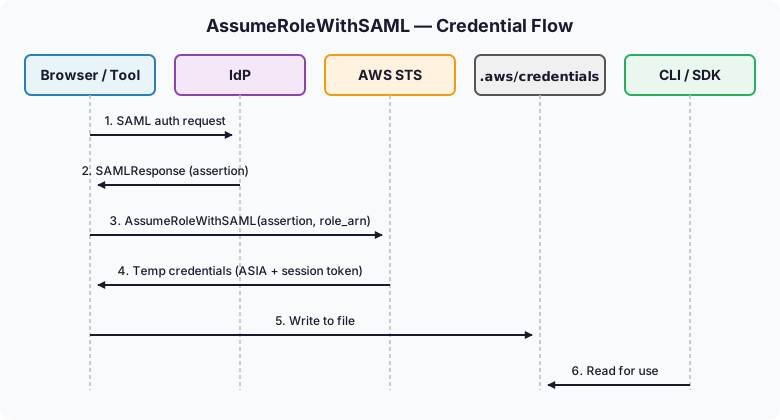
The saml2aws we met in the intro broke at exactly the upper part of this flow — the point where SAMLResponse is supposed to be extracted from the IdP response. The IdP sent back a Passkey page instead of a password form, the form selectors no longer matched, and without an assertion in hand the tool never even got as far as the STS call. WebAuthn/Passkey enforces origin binding and user presence to achieve phishing resistance, and those same security properties happen to be precisely what blocks headless automation tools. This isn’t a saml2aws-only problem; it’s a signal that the era of automated SAML clients in general is winding down. Which naturally leads to the question the next section answers — so where do we go from here?
4. So What’s Structurally Different About IAM Identity Center?
4.1 OIDC Device Authorization Grant — Separating Authentication from Token Collection
IAM Identity Center uses OIDC rather than SAML. More specifically, it uses Device Authorization Grant (RFC 8628), a somewhat unusual flow:
- The CLI tells the SSO OIDC endpoint “I need to authenticate”.
- It receives a user code and a verification URL in response.
- The CLI prompts the user to open the URL in a browser and starts polling the token endpoint in the background.
- The user authenticates in the browser against their IdP — Passkey, WebAuthn key, SAML, whatever the IdP wants.
- Once authentication succeeds, the CLI’s polling receives an access token and a refresh token.
The key insight is that “authentication happens in the browser, token collection happens in the CLI” — they’re decoupled. The CLI never inserts itself into the authentication process. That’s why Passkey works here. The exact weakness that killed saml2aws — trying to intercept the IdP login headlessly — doesn’t exist in this design.
4.2 The Refresh Model — Once a Day Is Enough
- Access token: valid for about 8 hours, automatically refreshed via refresh token on expiry.
- Refresh token: valid for about 90 days (tied to registration expiry).
- The practical effect is one browser-based authentication per day, with everything else automatic.
Compared to saml2aws breaking every hour, the day-to-day operational experience is entirely different. The frustration of being interrupted mid-task by an expired session simply goes away.
4.3 What sso-session Really Means
A section like [sso-session teamsparta] in ~/.aws/config isn’t just grouping — it means multiple profiles share the same access token. This is why a user with access to 50 AWS accounts doesn’t have to log in 50 times: a single SSO login produces temporary credentials for every account in scope.
As organizations and account counts grow, this distinction matters more and more. A model where a single authentication naturally fans out across all of a user’s permission boundaries is dramatically simpler — for both operators and users.
Closing Thoughts
Writing this piece reaffirmed something I already half-knew: the structure of ~/.aws/ is essentially an answer to the question “How do we obtain, store, and refresh credentials?” Once you understand what each file exists for, it becomes obvious where to look when something breaks.
Looking back on the day saml2aws died, it wasn’t really just one tool dying. It was the simultaneous closing of two eras — the era when headless clients could automate IdP login screens, and the era when nobody flinched at long-term access keys sitting in plaintext on disk. Phishing-resistant authentication is becoming the standard, and short-term credentials with refresh tokens are becoming the default. That shift is already in motion.
That’s why moving to IAM Identity Center isn’t really a tool swap. It comes bundled with structural improvements — the browser/CLI split, the refresh token model, sso-session sharing. If you work on top of AWS, getting on this train sooner rather than later is the right call.